Upgrade your speaker from a computer
Speaker Upgrade upgrades your speaker to the latest Karaoke AI Home software (6‑language interface, Lambo AI assistant, apps) and keeps it updated, with one click.
You need: a Windows 10/11 PC or a Mac with macOS 11 or later, an Internet connection, the same Wi‑Fi as the speaker, and the speaker's remote.
🚀 Speaker upgrade and warranty activation
- A speaker that still shows a Chinese interface has not been upgraded. After the upgrade it has 6 languages (Vietnamese, English, Japanese, Korean, French, Chinese) and the Karaoke AI Home interface.
- You can upgrade it yourself with an Android phone (Karaoke AI Home app → Account → Upgrade speaker) or with a Windows/Mac computer following this page. iPhones cannot upgrade a speaker.
- Warranty activation is separate: the first time a phone connects to the speaker, its 12‑month warranty is activated. The date is recorded on our server and cannot be reset.
- Each speaker includes 5 free phone connections. Each new phone uses one. A factory reset or a re‑upgrade does not refund connections or restart the warranty. Uninstalling and reinstalling the app on the same phone does not use a new connection.
- When the connections run out, upgrade to VIP to connect more phones; single connections are not sold.
- Once upgraded, use Update speaker software (in the app or this software) to get the newest version.
1. Download and open the software
Windows
- Click Download for Windows to get KaraokeAIHome-CaiLoa.exe. If the browser asks, choose Keep.
- Double‑click the downloaded file.
- If you see “Windows protected your PC”: click More info → Run anyway.
- The Speaker Upgrade window opens.
macOS
- Click Download for macOS and open the zip to extract KaraokeAIHome-CaiLoa.
- Double‑click that file.
- If macOS says it can't be opened because it can't be verified: click Done, go to System Settings → Privacy & Security, scroll down, click Open Anyway, then Open.
- A Terminal window appears (leave it open while installing) and the software opens in your browser.
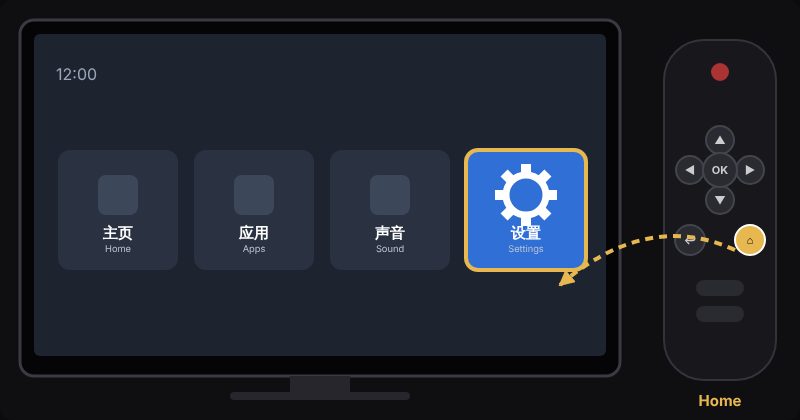
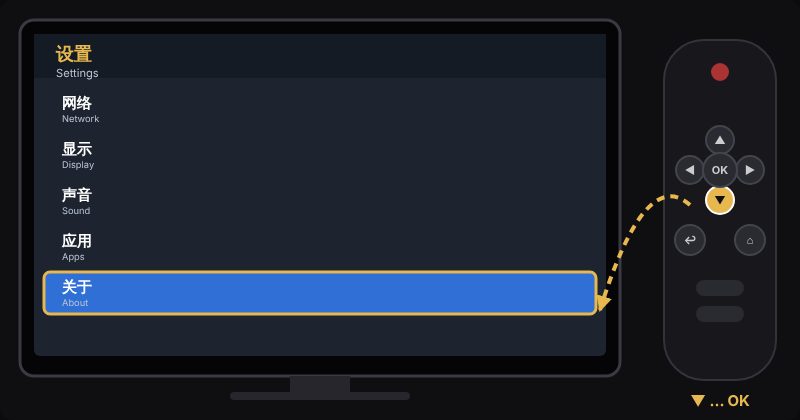
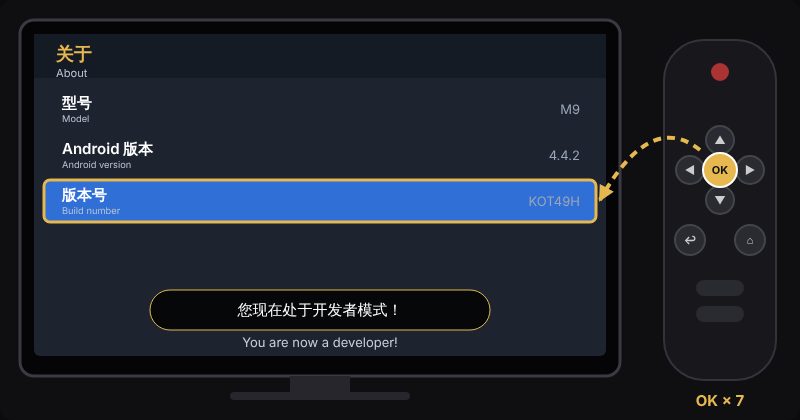
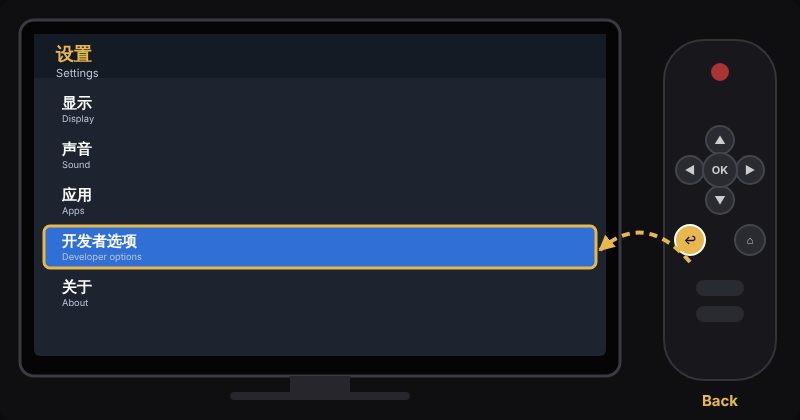
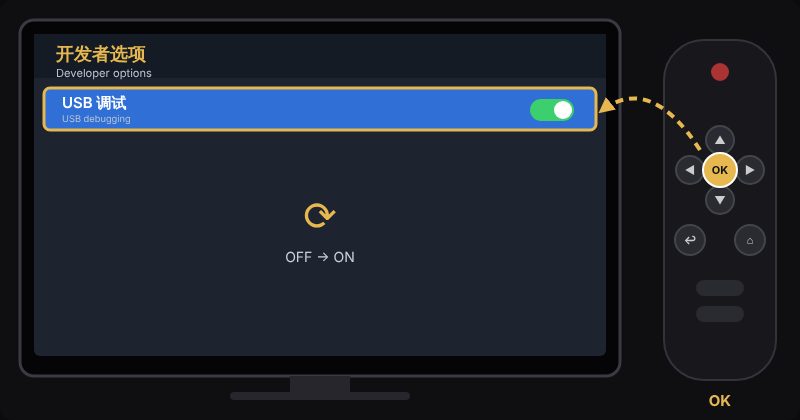
2. Turn on USB debugging on the speaker (once)
Turn the speaker on, connect it to the same Wi‑Fi as the computer, then follow the pictures with the remote. Menus on the speaker may be in Chinese, English or another language; the positions are the same.
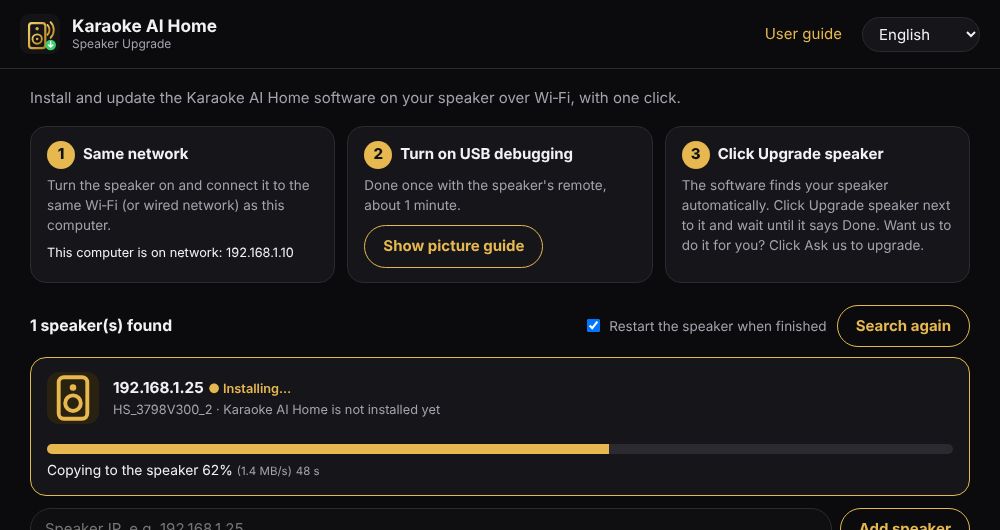
3. Install
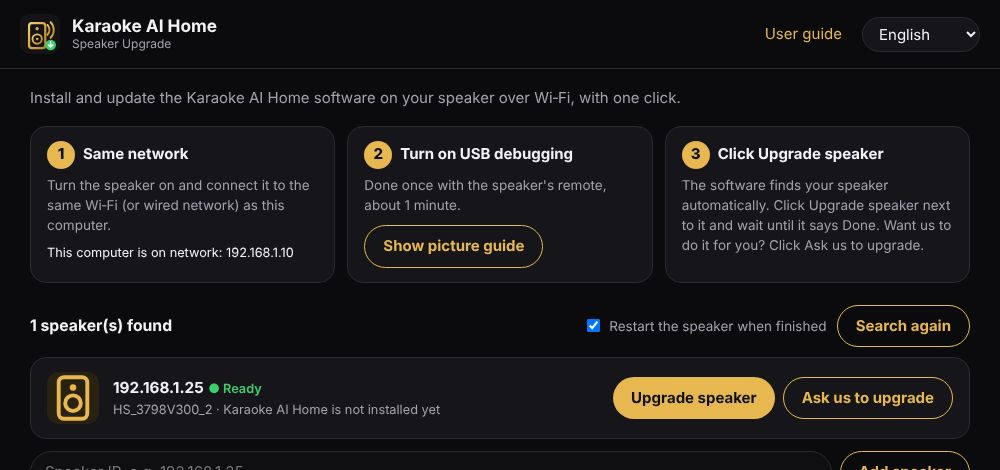
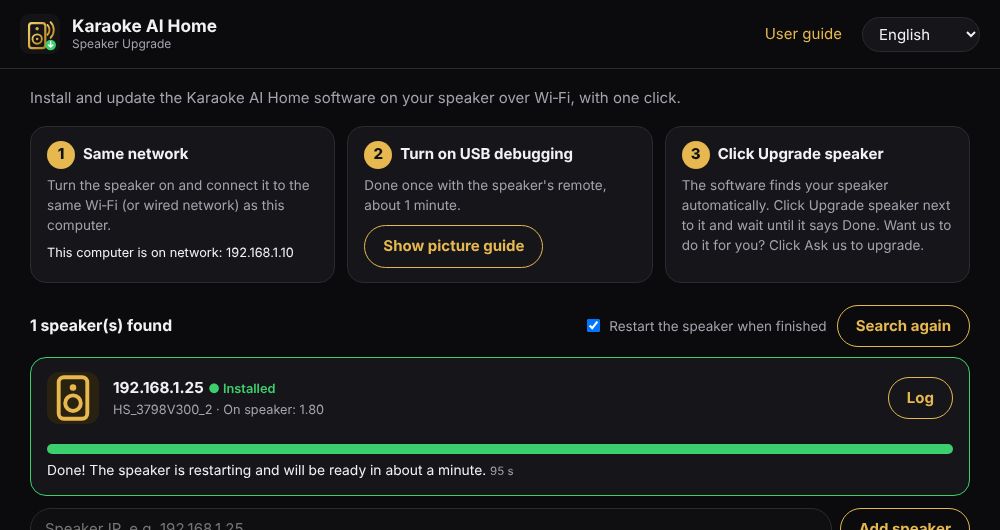
Ask us to upgrade
Prefer not to do it yourself? Click Ask us to upgrade next to the speaker. The software shows a 6‑digit support code; our team upgrades the speaker for you over the Internet. Just keep the software open until it says done, and quote the code if you contact support.
Updating later
When a new version is out, open the software again: speakers with an update show an Update button. The software always downloads the newest version from our server, so you only need to download the software again if it tells you a new version of it exists. Installed speakers can also update themselves with “Update speaker software” in the phone app.
Speaker not found?
- The speaker and the computer must be on the same Wi‑Fi. Guest networks often block devices from seeing each other.
- On the speaker, open Developer options, turn USB debugging off and on again.
- Still nothing? Type the speaker's IP address (Settings → Network on the speaker) below.
- Speaker already upgraded before? On the speaker open Settings → Allow upgrade over network (30 minutes), then click Search again.
Good to know
- The software only installs on supported speaker models. Other models are reported and left untouched.
- Don't turn the speaker off while installing. If the connection drops the software retries; if it still fails, click Retry.
- Need help? Email us: info@karaokeaihome.com