🚀 First‑time speaker upgrade
A new speaker still has a Chinese interface. Upgrade it yourself once (about 10 minutes) to get the Karaoke AI Home interface, 6 languages and the Lambo AI assistant.
You need: the speaker and its remote, a TV connected to it, your home Wi‑Fi, and an Android phone or a Windows/Mac computer.
iPhones cannot upgrade the speaker. Use an Android phone or a computer; once upgraded, iPhones can use the app as normal.
1Turn on the speaker and connect Wi‑Fi
- Plug in the speaker, connect it to the TV with an HDMI cable, then turn on the speaker and the TV.
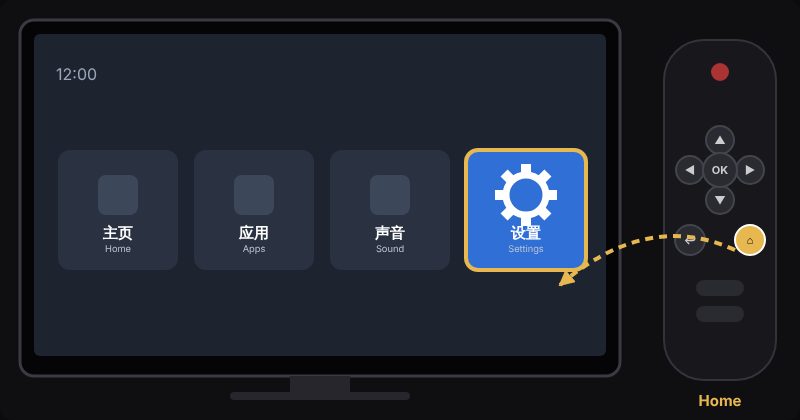
- Press Home on the remote, go to Settings → Network (Wi‑Fi), choose your home Wi‑Fi and enter the password.
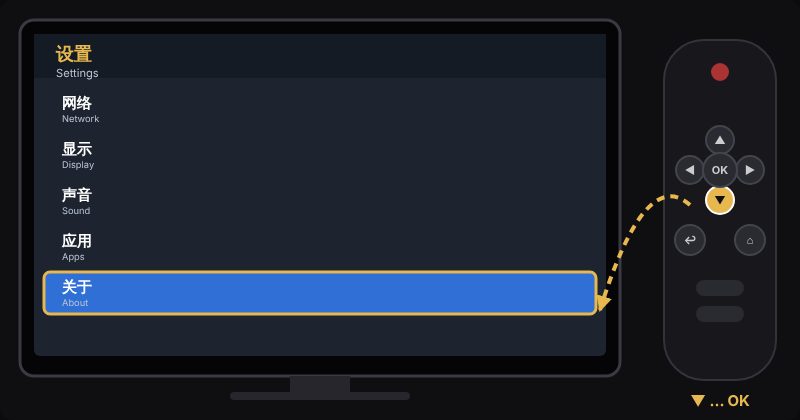
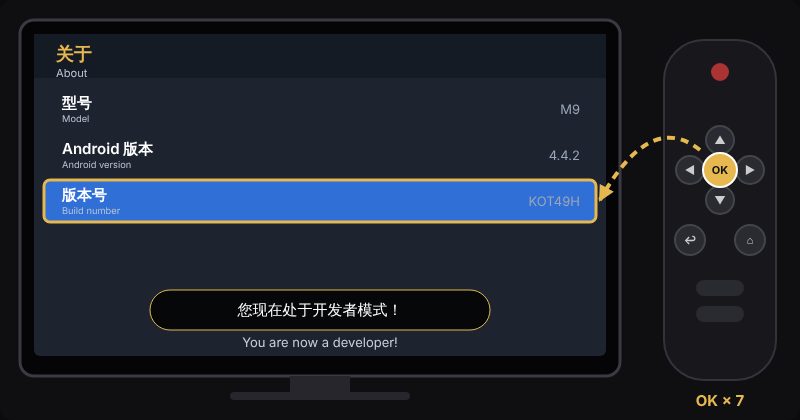
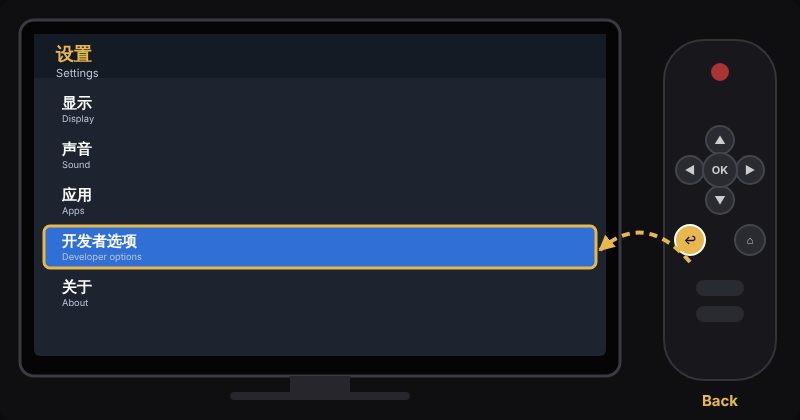
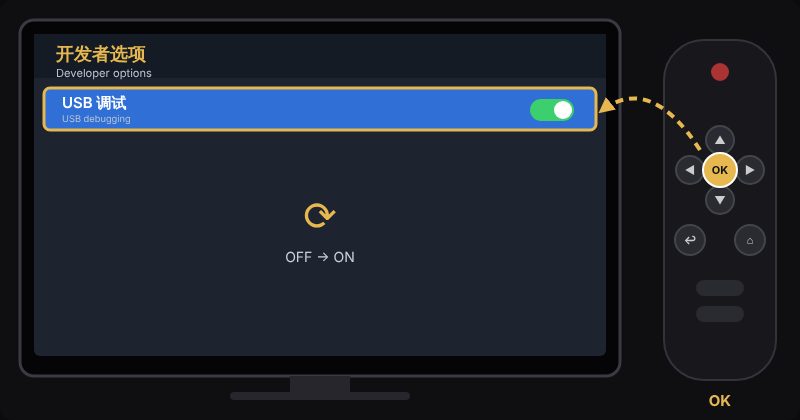
- Menus may be in Chinese; the positions are the same as in the pictures in step 2.
2Turn on USB debugging on the speaker (once)
Use the remote and follow the 5 pictures below.
3Choose how to upgrade
With an Android phone
- Download the Karaoke AI Home app for Android.
- Put the phone on the same Wi‑Fi as the speaker.
- Open the app → Account → Upgrade speaker, pick the speaker and tap Start. It takes about 3 to 5 minutes.
With a Windows or Mac computer
- Download the speaker upgrade software and open it.
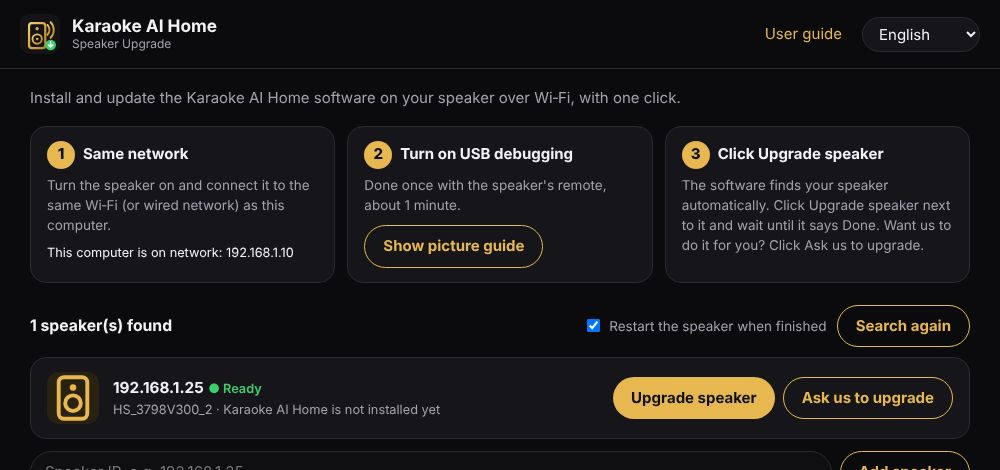
- Keep the computer on the same Wi‑Fi; the speaker appears in the list as Ready.
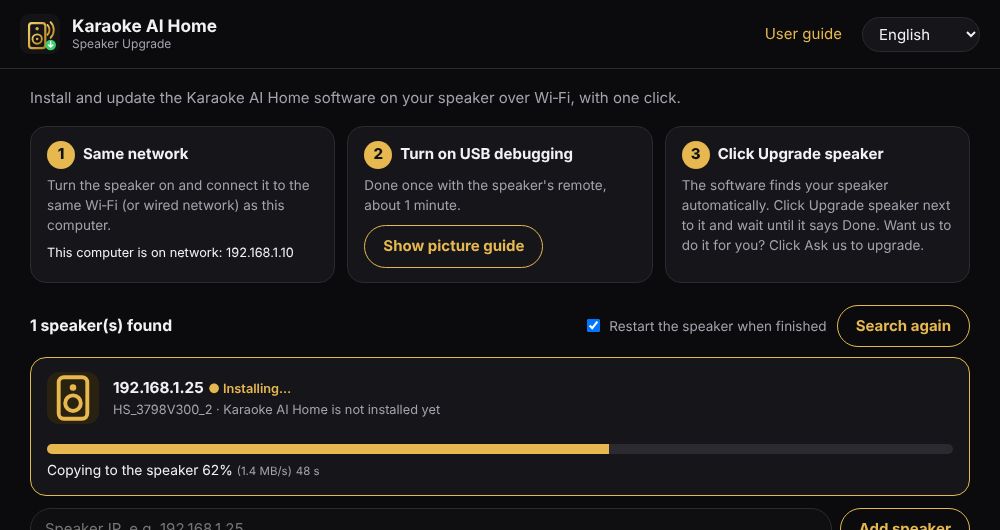
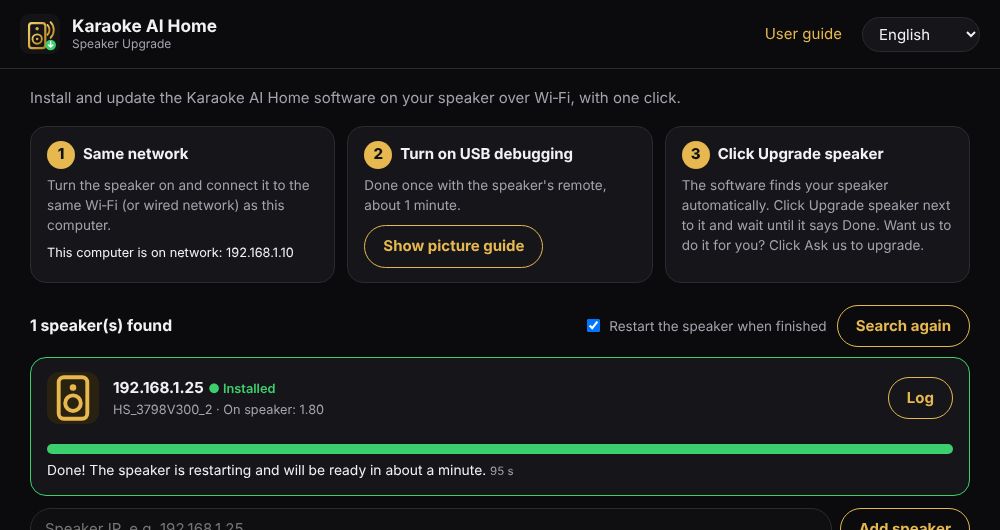
- Click Upgrade speaker and wait for Done.
🛟 Ask us to upgrade remotely
- Finish steps 1 and 2 above.
- Download the speaker upgrade software for your computer and open it; keep the computer on the same Wi‑Fi as the speaker.
- Click Ask us to upgrade next to the speaker. The software shows a 6‑digit support code.
- We upgrade the speaker over the Internet right away; you don't need to send anything. Keep the software open until it says Done. The code is only needed if you contact support.
4The speaker restarts
When it says done, the speaker restarts. About a minute later the TV shows the Karaoke AI Home interface with 6 languages.
5Connect your phone and activate the warranty
- Open the Karaoke AI Home app on your phone (Android or iPhone), tap the speaker name at the top → Find speaker → enter the 4‑digit code shown on the TV.
- The first time a phone connects to the speaker, its 12‑month warranty is activated. The date is stored on our server and cannot be reset.
- Each speaker includes 5 free phone connections; each new phone uses one. When they run out, upgrade to VIP.
Need help? Email us: info@karaokeaihome.com